QuantaStor Screenshots
-
Getting Started
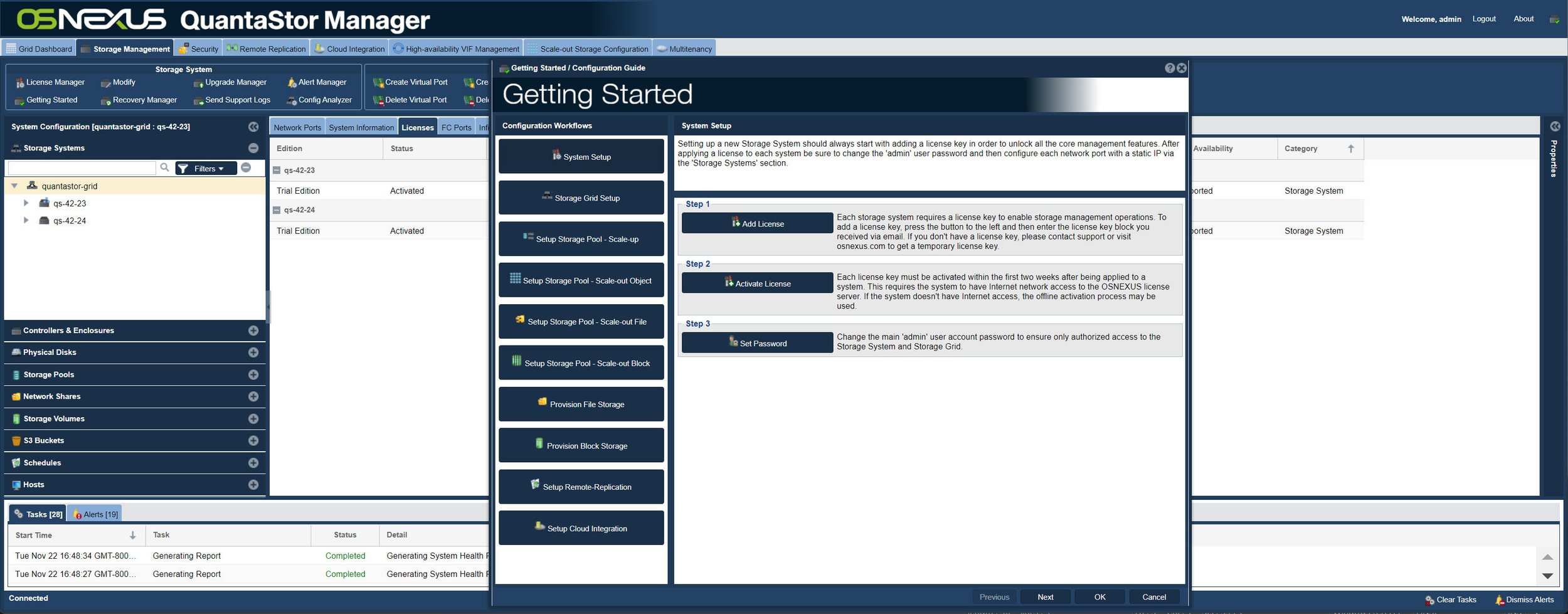
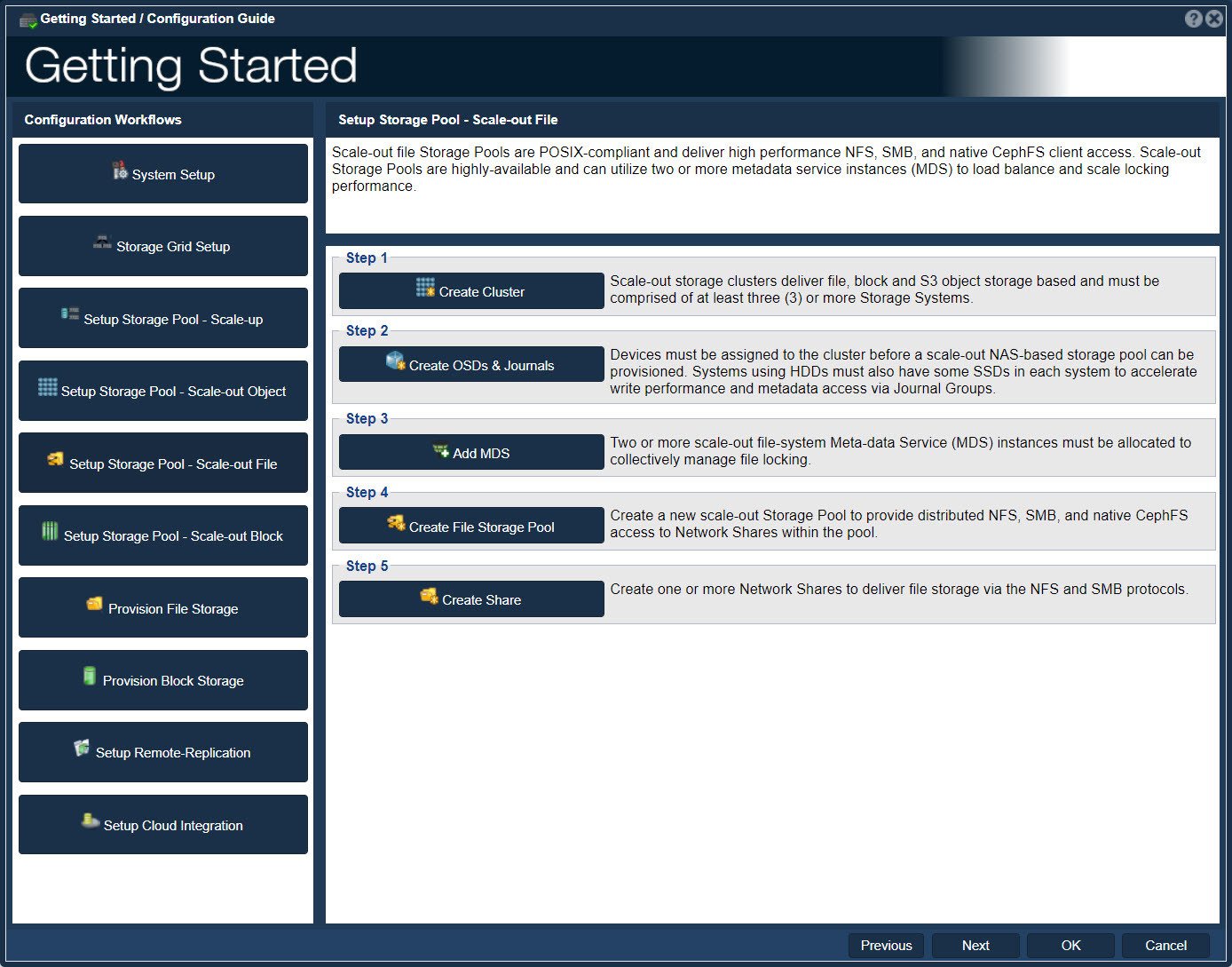
When you first connect to the storage system you'll be presented with a configuration checklist to walk you through the initial configuration steps. When you're done with step 8, you'll have all the basics configured and this can be done in just a few minutes. You can close and and then re-open the 'Getting Started' configuration checklist at any time by pressing the 'System Checklist' button in the toolbar. -
System Overview
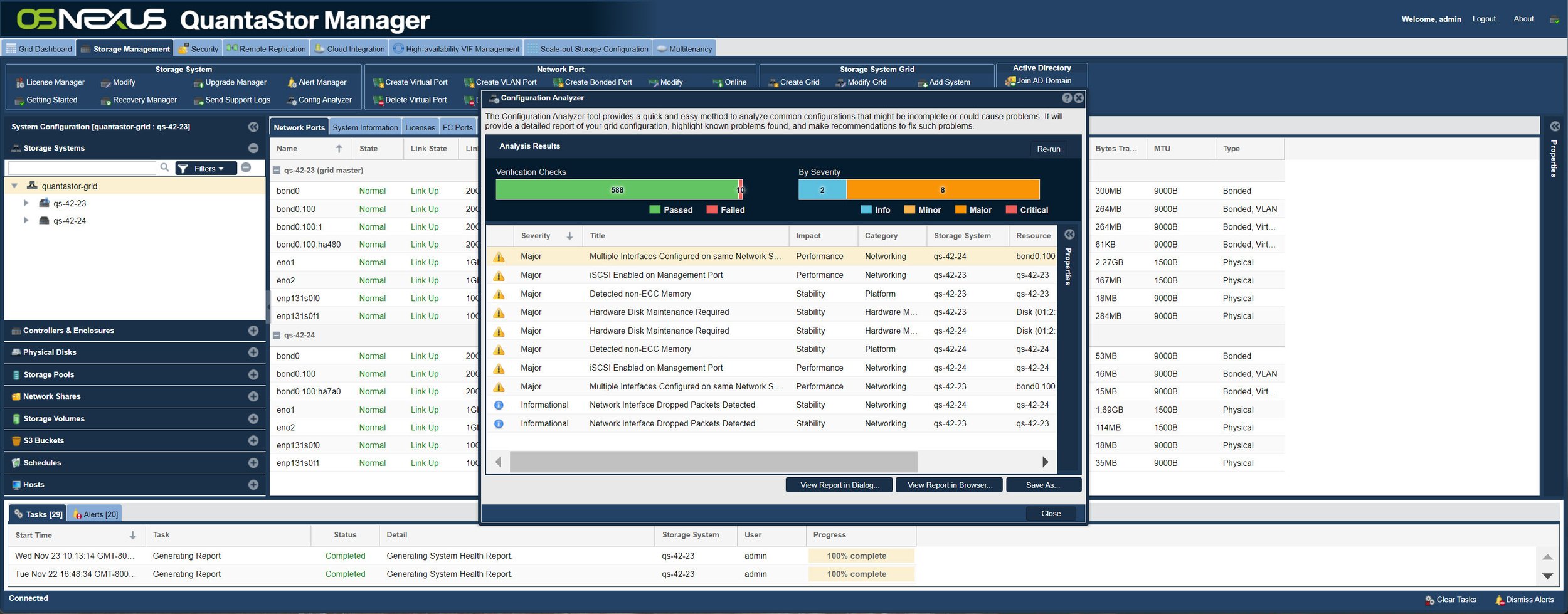
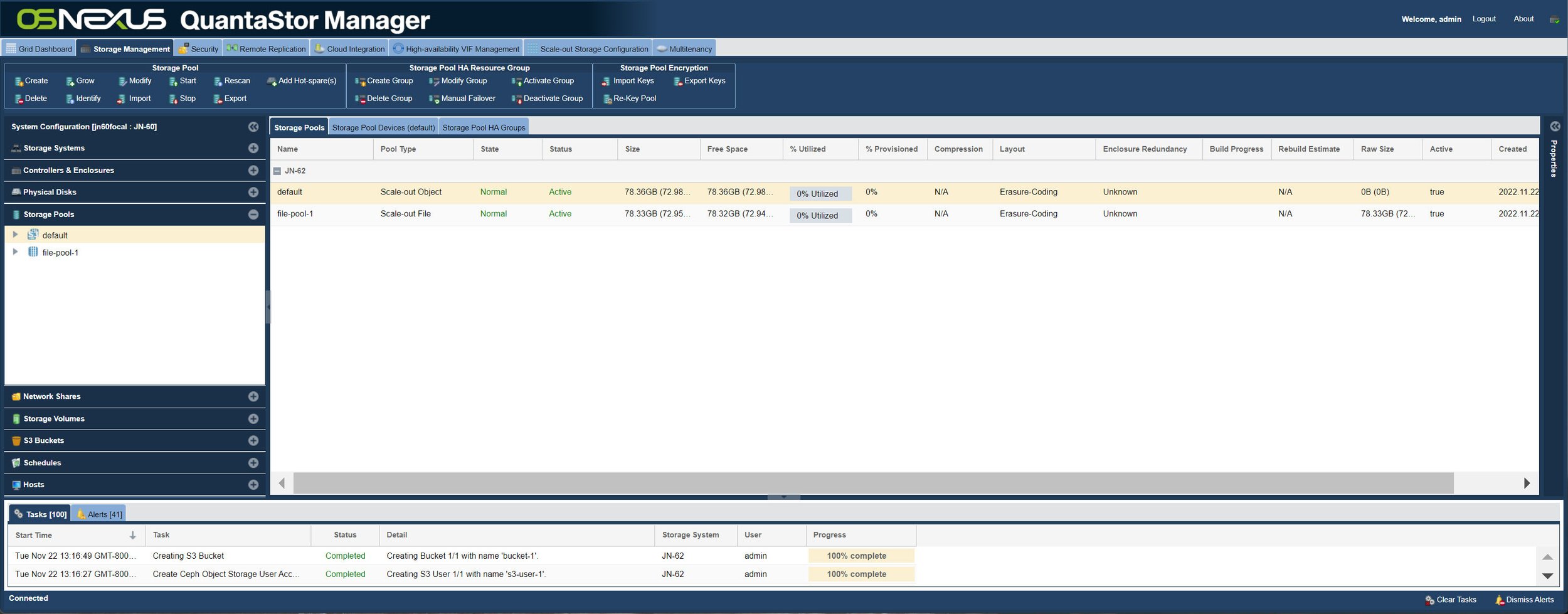
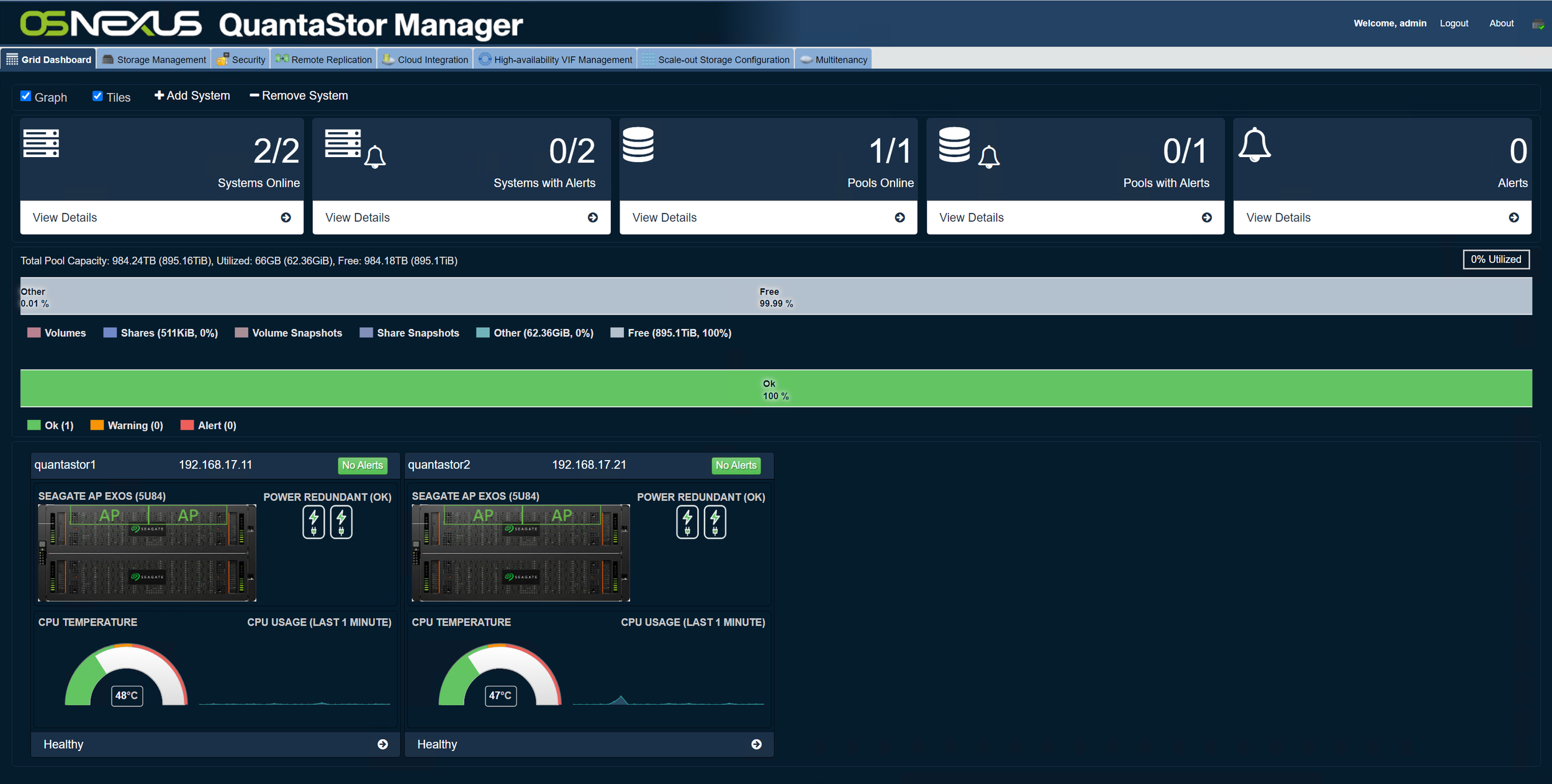
QuantaStor Manager arranges the management of your storage system into separate tabs (Storage Management, Users & Clouds, Cloud Backup, and Remote Replication) for quick and easy management of your system. The main "Storage Management" tab is where most of the management operations are done including storage provisioning, license, and network port configuration settings for your system.You can connect to QuantaStor™ Manager over http/https using any major web browser by simply entering the IP address of the storage system into your web browser. Using QuantaStor™ Manager you can remotely manage all aspects of the storage system and due it's advanced Web 2.0 architecture it loads up in just seconds and works just like a native desktop application.
-
Provisioning Storage / Creating Storage Volumes
Storage Volumes, also known as LUNs or virtual disks represent the logical disk devices that your servers utilize via their FibreChannel or iSCSI initiator's connection to the storage system. Allocating new storage volumes can be done one at a time or in batches by indicating a quantity.
Storage volumes are created out of storage pools which are essentially groups of physical disks that are combined together using RAID. Storage volumes inherit the fault tolerant characteristics of the storage pool they are created from. For example, if you have a storage pool that consists of 12 SATA 2TB disks in a RAID6 configuration, then you have 20TB of usable disk space in your storage pool to create storage volumes with. You can opt to create a single 20TB volume, or you can create many 1TB storage volumes, or hundreds of smaller volumes. Because QuantaStor supports thin provisioning you can also over provision the storage pool and then grow the pool at a later date as needed. Storage volumes can also be dynamically grown at any time. -
Storage Pool Utilization Graphs
Storage pools are groups of physical disks that are combined using QuantaStor's software RAID to make your storage fault-tolerant. QuantaStor supports RAID levels 0,1,5,6, and 10. You can also use QuantaStor with hardware RAID using an LSI, Adaptec, Areca, HP, or other SATA or SAS RAID controller. The pie graph here shows a very simple configuration with a single RAID0 storage pool with quite a bit of free space left. -
Citrix Essentials for Hyper-V™ and XenServer™
QuantaStor™ is integrated with Citrix Essentials™ for Hyper-V and XenServer™ which enables virtual machines to be easily managed and deployed by fully automating all the QuantaStor management operations via Citrix XenCenter™ and Citrix StorageLink™ Manager.
-
Boosting iSCSI Bandwidth with NIC Bonding
Using NIC (network interface card) bonding you can easily bond multiple network ports together into a high-speed fault tolerant 'virtual port'. NIC bonding leverages capabilities in QuantaStor and in your switch hardware so that I/O to and from the switch is spread across the bonded network ports in a round robin fashion. If one of the network ports goes down or the cable is disconnected, the switch will continue to route traffic to the remaining available ports. Generally speaking, all the bonded ports must be connected to the same network switch. This is because each port is sharing a single MAC address and the switch assumes that no other switches are connects to NICs with that MAC address. Should that MAC address show up on another switch then packets will not get routed properly and network problems will manifest. QuantaStor supports having up to 4 virtual ports (4 separate NIC teams), and each virtual port/team can bond together up to 4 ports.
-
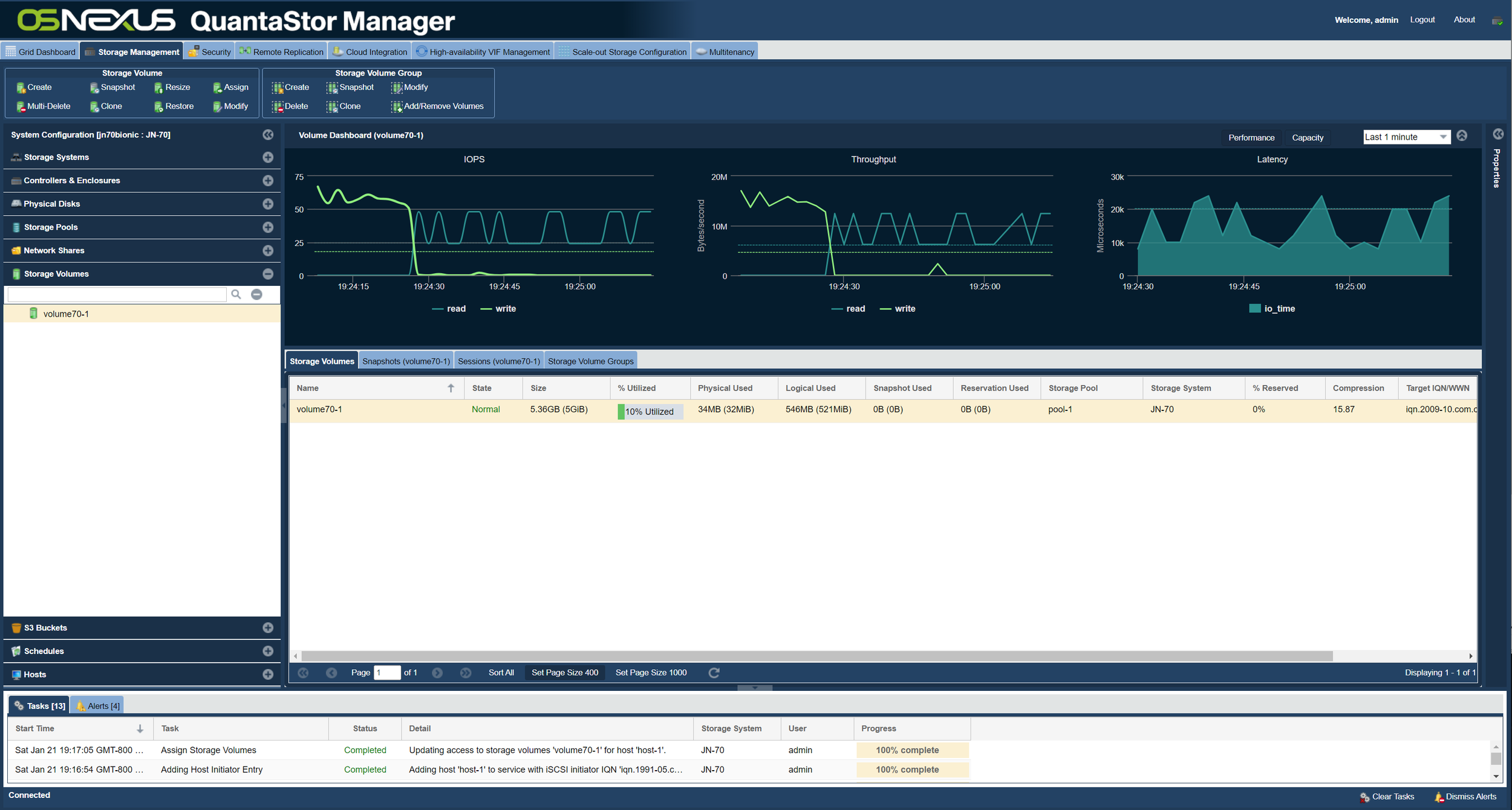
Volume Utilization Graphs
Storage volume utilization for both read I/O and write I/O is continuously tracked so that you can easily determine which volumes are most heavily utilized and you can use the data within a charge-back accounting system to charge users on disk utilization, provisioned storage, and total I/O utilization. Totals for IO utilization on each volume are stored for each hour of the day so that you can adjust charge-back pricing for peak & off-peak hours. -
User Management
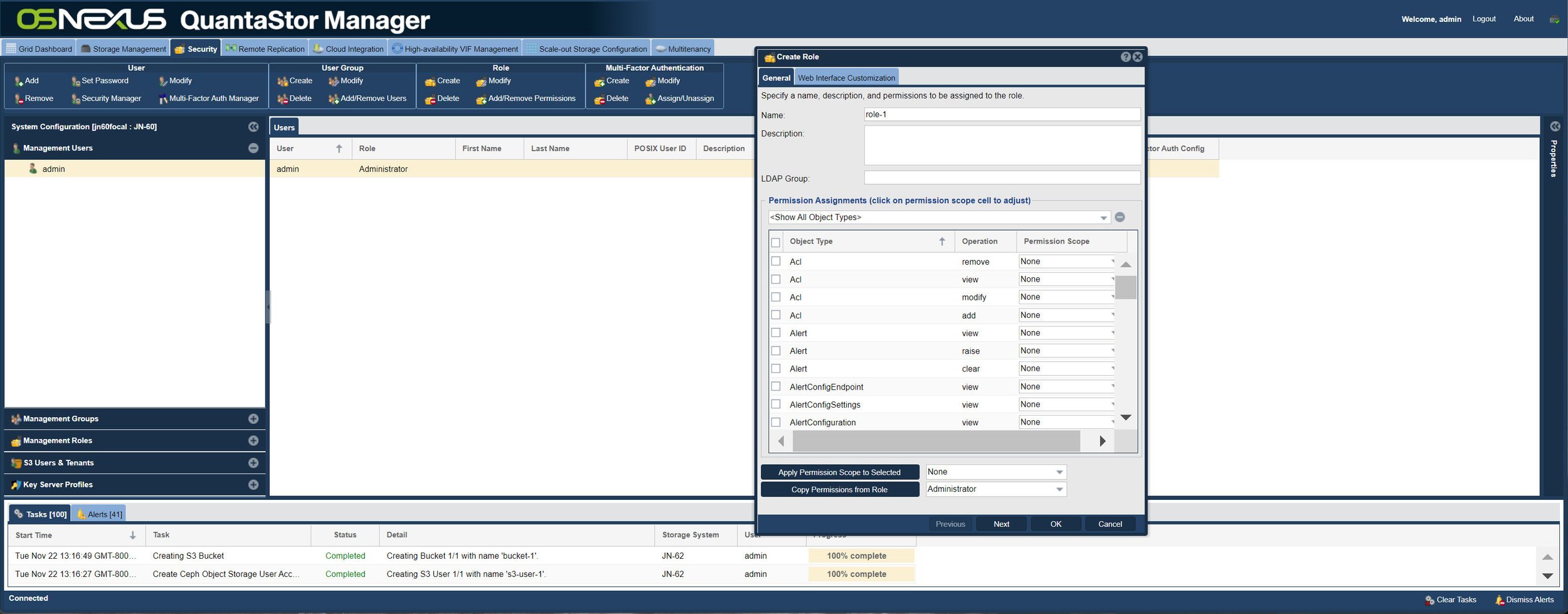
QuantaStor's role based access control (RBAC) system allows you to assign users a predefined or custom role that matches their area of responsibility within your organization. Further, QuantaStor allows you to scope the set of resources a user or group of users can manage via a storage cloud so that each project team sees a scoped view of the system and manages only their volumes.
-
Advanced RBAC Security w/ easy Custom Role Creation
You can create custom roles to limit what a given user or agent can do within the system. In this screen it shows the administrator creating a custom role for Microsoft VSS providers. This allows you to constrain the activities of a given VSS provider to just snapshot and storage assignment operations. This way if the VSS agent user account password was ever compromised the repercussions would be limited. This contrasts to how traditional storage systems do it today where they must give each VSS provider on each host the Administrator password to the storage system. -
Automated Snapshots
QuantaStor™ has powerful snapshot and restore capabilities, but to leverage rollback capabilities you must have snapshots to rollback to. With our automated Snapshot Schedules we make it easy. Just select the days and hours of the day at which you want a snapshot to be created and snapshots will be created for you automatically for all the volumes selected. The 'max snapshots' setting allows you to indicate at which point the oldest snapshot should be removed before creating a new automated snapshot. If there's an automated snapshot that you want to retain you can snapshot it again, or just rename it and it will be taken out of the cycle so that it will not be auto-deleted. QuantaStor™ snapshots are read/write by default so you can boot from it or you can assign the snapshot to the host from which it was created and recover files directly.
Note: You volume must in a storage pool of the 'Advanced' type in order to create snapshots. Cloning can be done within and between pools of any type. -
Adding & Assigning Storage to Hosts
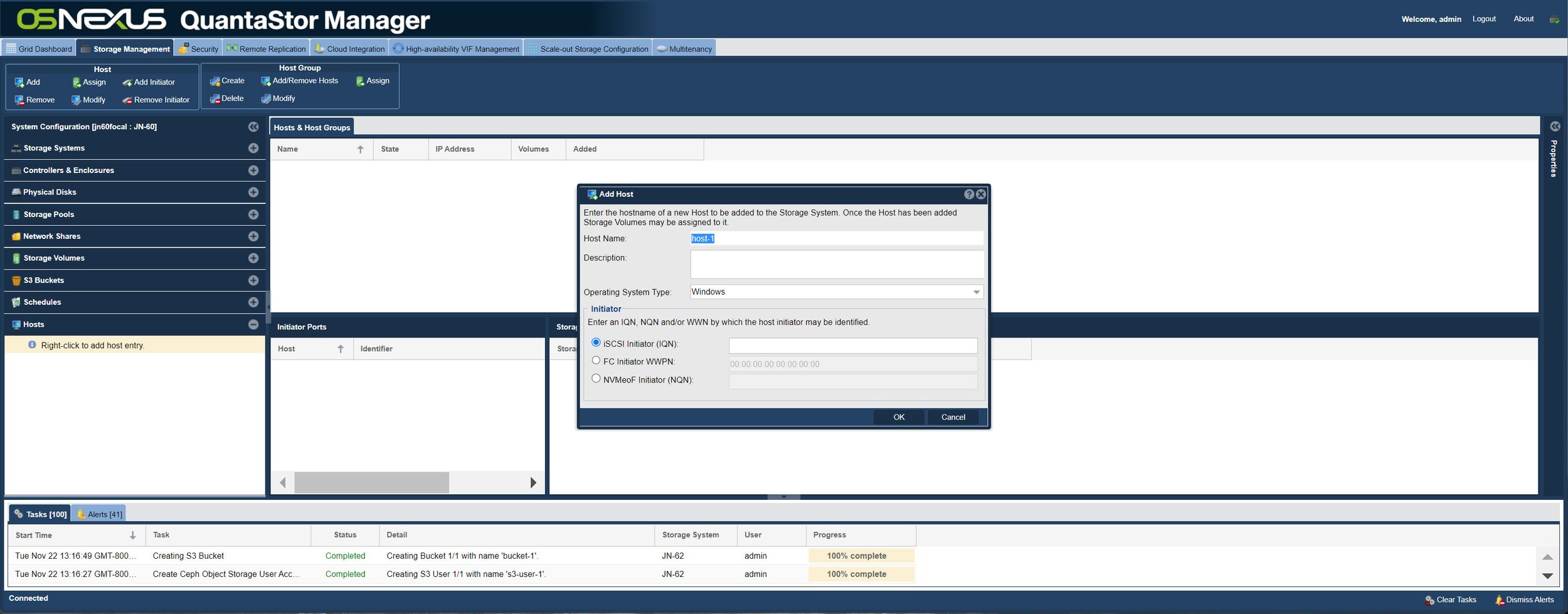
Each host you are going to assign storage to needs to have a Host entry in the storage system so that it can be assigned one or more storage volumes. To identify the host, you must specify the IP address, FibreChannel WWPN, or the IQN (iSCSI Qualified Name) for your host computer's iSCSI initiator. This can be found on Windows under 'Administrator Tools' -> 'iSCSI Inititor' on most versions of Windows. On Apple OS X you'll need to first install a the globalSAN iSCSI initiator available here. -
Host Groups / Managing Clusters
Host groups make it easy to assign storage volumes to a group of one or more hosts all at once which is great for cluster applications like Windows Failover Clustering, VMware, and XenServer resource groups. By creating a host group to combine all the host entries for you cluster you're able to assign storage volumes to your cluster quickly and easily. You can also add and remove members to/from a host group at any time and it will automatically update the storage volume access settings accordingly. You can also have storage volumes assigned to more than one host and host group. -
Creating NFS Network Shares
QuantaStor supports NFS so that you can utilize your storage system not only for block protocols like iSCSI and FibreChannel but you can also store files over NFS. Currently there is no support for CIFS in QuantaStor but that is on our roadmap for 2011. -
Assigning Volumes to Host Groups
You can assign storage volumes to individual hosts or host groups or both. Host groups are very useful in situations where you have cluster of hosts that you need to assign the same volume to. Using a Host Group you can assign the storage to all the nodes in a cluster in a single step operation saving you time. -
Hardware RAID Integration w/ LSI 3ware & MegaRAID
QuantaStor can be integrated with the LSI 3ware RAID controllers so that alerts/events and other configuration information can be viewed via the QuantaStor Manager web UI. This allows you to be notified when the RAID controller reports an internal disk failure and gives you a deep view into the configuration of your hardware RAID units. -
Physical Disks / Hardware Integration
Depending on the selection of hardware you are using to deploy QuantaStor you can add additional storage on the fly via hot-swap SAS/SATA chassis available from HP, Dell, SuperMicro, IBM, and others. To discover newly attached physical disks, simply choose the 'Scan for Disks' option from the Physical Disks section.
Also, if you're using a LSI 3ware 9xxx series RAID controller you'll be able to see the mapping between the logical disk that QuantaStor sees and how that relates to the hardware RAID units and physical disk devices connected to your RAID controller. -
Backup to Amazon S3
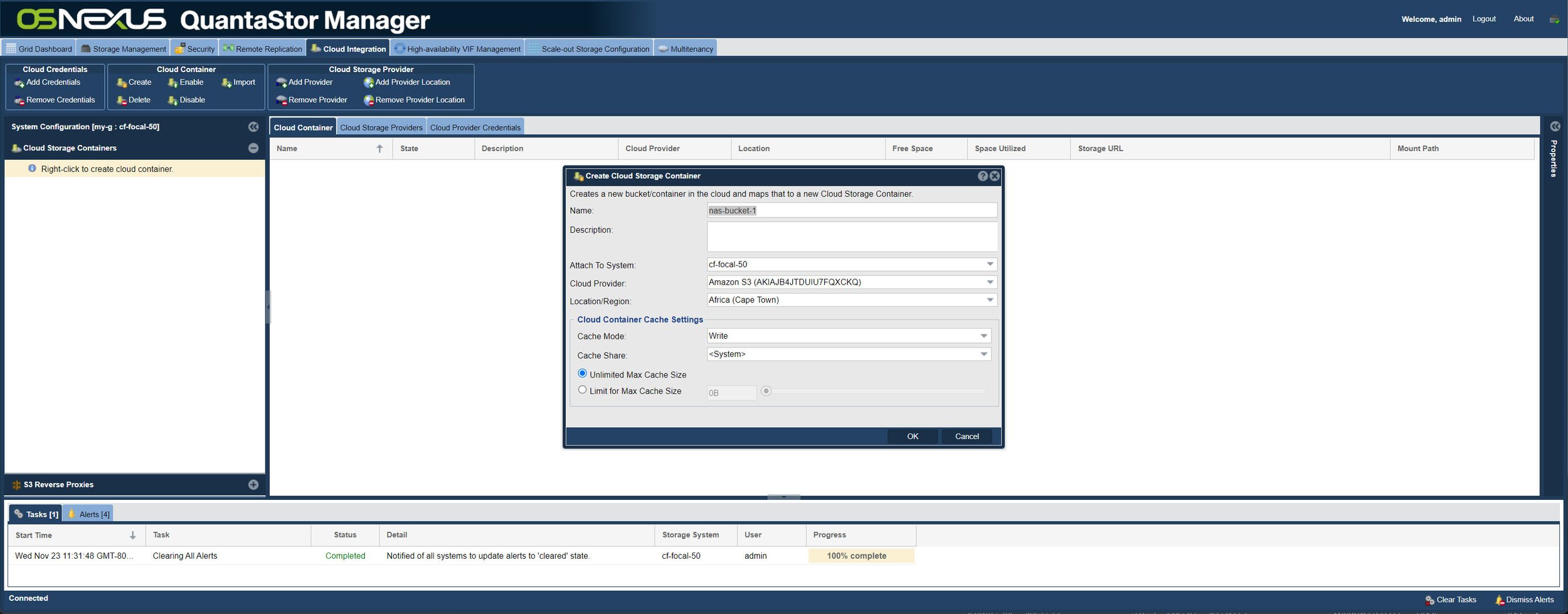
With QuantaStor v2.0 you can now backup your storage volumes to the Amazon S3 cloud. To do so you just add your Amazon S3 credentials into the QuantaStor storage system, and then you're able to make containers for your backups. Backups to cloud containers are encrypted, comressed, and deduplicated automatically thereby reducing your cloud footprint which saves both time and money. -
Multi-tenancy & Storage Clouds
QuantaStor Enterprise and Platinum Editions come with our patent pending storage cloud capabilities. Each storage cloud is like a virtual storage array in that the cloud users can only view and manage the resources (volumes, hosts, etc) placed within the cloud.
Rather than having to buy a new storage system for each project, with QuantaStor you can just create a private storage cloud for each team, assign each cloud a quota, and you're done.
-
Creating Storage Quotas
Storage quotas are always associated with a storage cloud and they allow you to easily control and meter the amount of storage utilized by each cloud. There are three limits that you can set within a quota, the provisioning limit, the utilization limit, and the volume limit. The provisioning limit is the amount of storage that can be thin-provisioned in the process of making volumes, snapshots, and clones. The utilization limit is the amount of space that can actually be reserved/utilized by those volumes. This allows teams to use thin-provisioning within the cloud but also enables you to control actual utilization so that you get notified when a given cloud is hitting a threshold. Finally, you can limit the number of volumes that can be created within a given cloud. To make this unlimited, just set it to 0.
-
Storage Pool / RAID Management
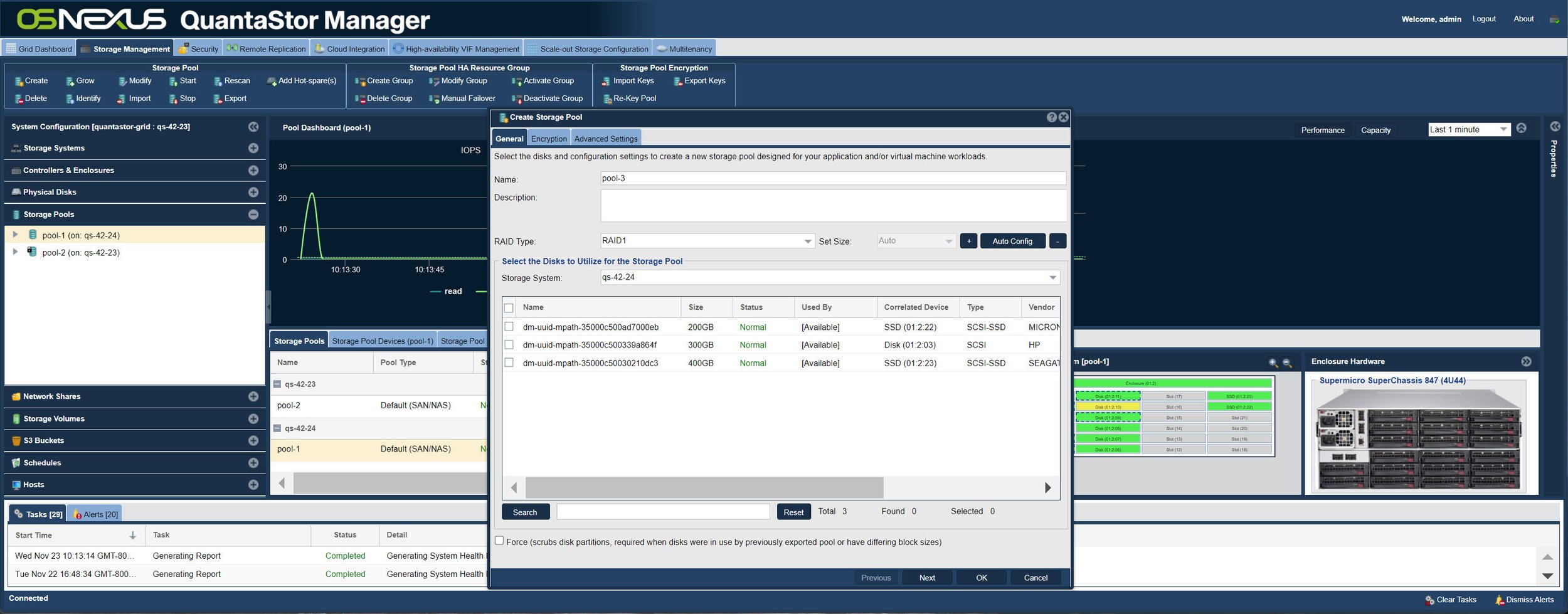
The process of creating a new storage pool couldn't be easier. Just select the disks to be added to the pool and the RAID layout type and press OK.
Storage pools are groups of physical disks that are grouped together to form a fault-tolerant pool of storage from which you can provision disks (storage volumes). Storage pools can be created using any of the major RAID layouts including RAID0 (not fault tolerant), RAID1 (mirroring), RAID5 (fault tolerant to a single disk failure), RAID6 (fault tolerant up to two simultaneous disk failures), and RAID10 (striped mirror).
Storage volumes are created from storage pools and inherit the fault tolerant properties of the pool.
-
Organizing Storage Volumes with Volume Groups
Storage volume groups are a great tool for keeping track of groups of volumes that are used for some purpose like a database application or are assigned to a specific host. Using groups you can also snapshot a set of volumes or clone them all at once so management of complex configurations is made easier. -
Storage Volume Groups
This screenshot shows some of the different operations you can do on a storage volume group. -
Snapshotting Storage Volume Groups
Snapshots of complex configurations are made easy using Storage Volume Groups. Here we show a Windows Hyper-V golden image which has three volumes which has been snapshot to create a new set of volumes for a specific project.